
Using The EasyBadge App
What Is EasyBadge?
The EasyBadge App allows you to take photos of your team and upload them directly to our systems.
It is an optional tool which is of use if you do not already have photos of your staff members or where you are using our ID bureau services and need additional cards for new employees.
You can continue to supply images by email or file upload if you prefer; EasyBadge simply streamlines photo capture and reduces back-and-forth. The app guides the user through a simple workflow and helps ensure each image meets the quality needed for clear, professional printed ID cards.
Typical users include office managers, school administrators, event teams, and HR staff who need a quick way to capture consistent photos across different locations or on the first day a new starter arrives.
How Do I Get EasyBadge?
If you do not have staff photos already, we can guide you through the process of installing and using the EasyBadge App. The app is available for both Apple and Android devices and can be installed using the links below.
Installation usually takes a couple of minutes. No specialist equipment is required; a recent smartphone or tablet with a working camera is sufficient. If you are setting this up for multiple colleagues, you can install the app on more than one device and request a connection code for each device as needed.


If you would like help with installation or permissions on managed devices, our team can talk you through it by phone, email, or live chat via our contact page.
How Do I Get Started With The App?
You will only need to use the EasyBadge app if you do not already have staff photos, or if you need to take photos of new team members.
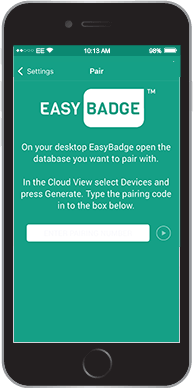
Once you have downloaded the app to your device we can provide you with a code to connect your device to our systems. Our team are happy to walk you through this step over the phone if required.
The connection code links your app to your specific order or organisation, so images land in the correct place. You can request new codes at any time if you change devices or need to add additional users.
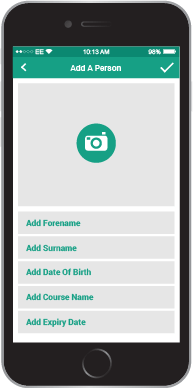
Create A New Record
To add a new record simply tap the plus [+] button and fill in the data for that team member: first name, last name, job title etc.
You can complete as many fields as you like at this stage. If you are not sure about a detail, it can be added later. For bulk teams, it is often quickest to complete the key fields and add optional fields as you go.
Add An Image
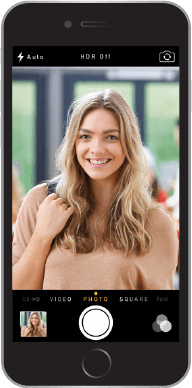
Add an image to the record by tapping the photo icon and taking a picture with your phone or tablet camera.
For best results: stand the subject against a plain, light background, use good lighting (natural light works well), hold the device at eye level, and frame the head and shoulders. Ask the subject to remove hats or large headwear unless required for religious or medical reasons. Glasses are fine as long as the eyes are clearly visible and there is no heavy reflection.
The app allows you to retake the photo if needed. If you are capturing photos in a busy environment, consider using a consistent spot and height for the camera to keep results uniform across your team.
Record Complete
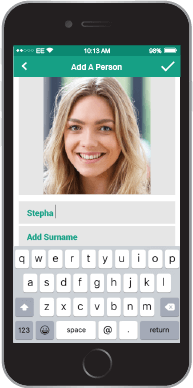
After taking a photo, complete any missing data fields: the record for that member of staff is complete and will sync with our systems.
Sync usually happens quickly when your device has an internet connection. If you are offline, the app will queue the upload and send it when you are next online. You can safely continue capturing additional records while previous photos upload in the background.
Staff List
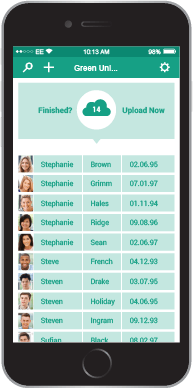
Continue using the app until all data and images are added. Let us know you are done and we will import the new records.
Once imported, our team prepares a design proof so you can confirm layout, names, and photos before printing. If any corrections are required, just reply to the proof email and we will update the records. Reprints or additional new starter cards can be requested at any time using the same process.
Using The EasyBadge App PDF Guide
Our handy PDF guide to using the EasyBadge app can be viewed and downloaded. It contains everything you need to know to get started with the EasyBadge App.
Photo Quality Tips
To help ensure a professional result on your printed ID cards, aim for sharp images with the subject in focus and well lit. Avoid heavy shadows, strong backlighting, or extreme angles. Where possible, use portrait orientation and keep hair and clothing within the frame. If you are unsure about a photo, take two or three options; we will use the best image at proof stage.
Data Protection And Privacy
Photos and staff details captured in EasyBadge are used solely for producing your printed ID cards. We handle your data securely and only for the duration required to fulfil your order and manage any agreed reprints. If you have specific retention requirements or policies, please let us know so we can align with your process. For any questions about data handling or deletion, contact us by phone, email, or live chat via our contact page.
Support
If you have any questions about installing the app, generating connection codes, or capturing consistent photos, our team is here to help. Reach us by phone, email, or live chat via our contact page, and we will guide you step by step.